

Navigation / User Interface
Learn about what the main navigation sections and buttons do.
Elections Navigation
When you navigate to the Elections sub-component menu from your participatory space, you will be greeted by this screen:
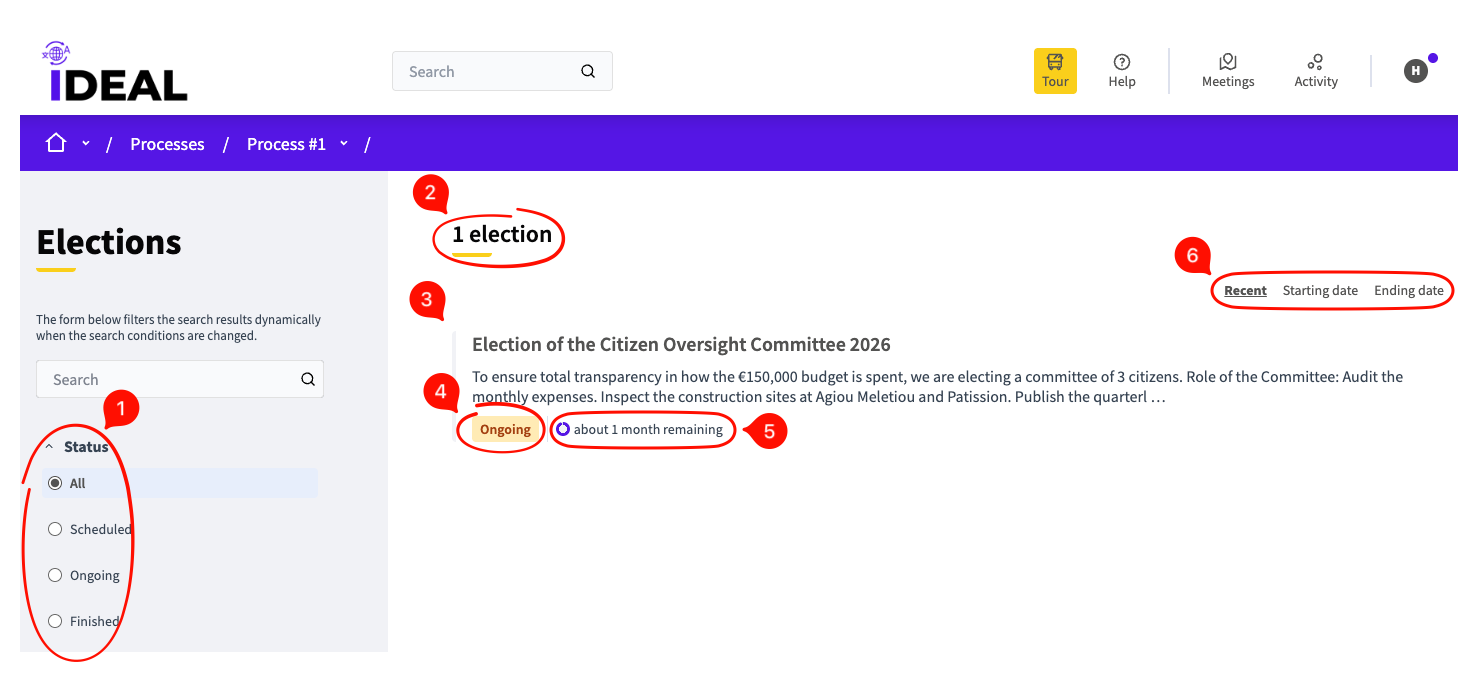
Status filter: Filter elections by their current status (see also #4)
Number of elections: See the number of elections available/published in this participatory space.
Election title/link: Click here to go to the individual election page. See the beginning of the descriptive text below.
Status: Shows you the current status of the election (Scheduled/Ongoing/Finished)- see also #1.
Time remaining: Shows you how much time remains for participants to vote.
Sorting: Sort by recent, starting date or ending date.
Individual Election Screen
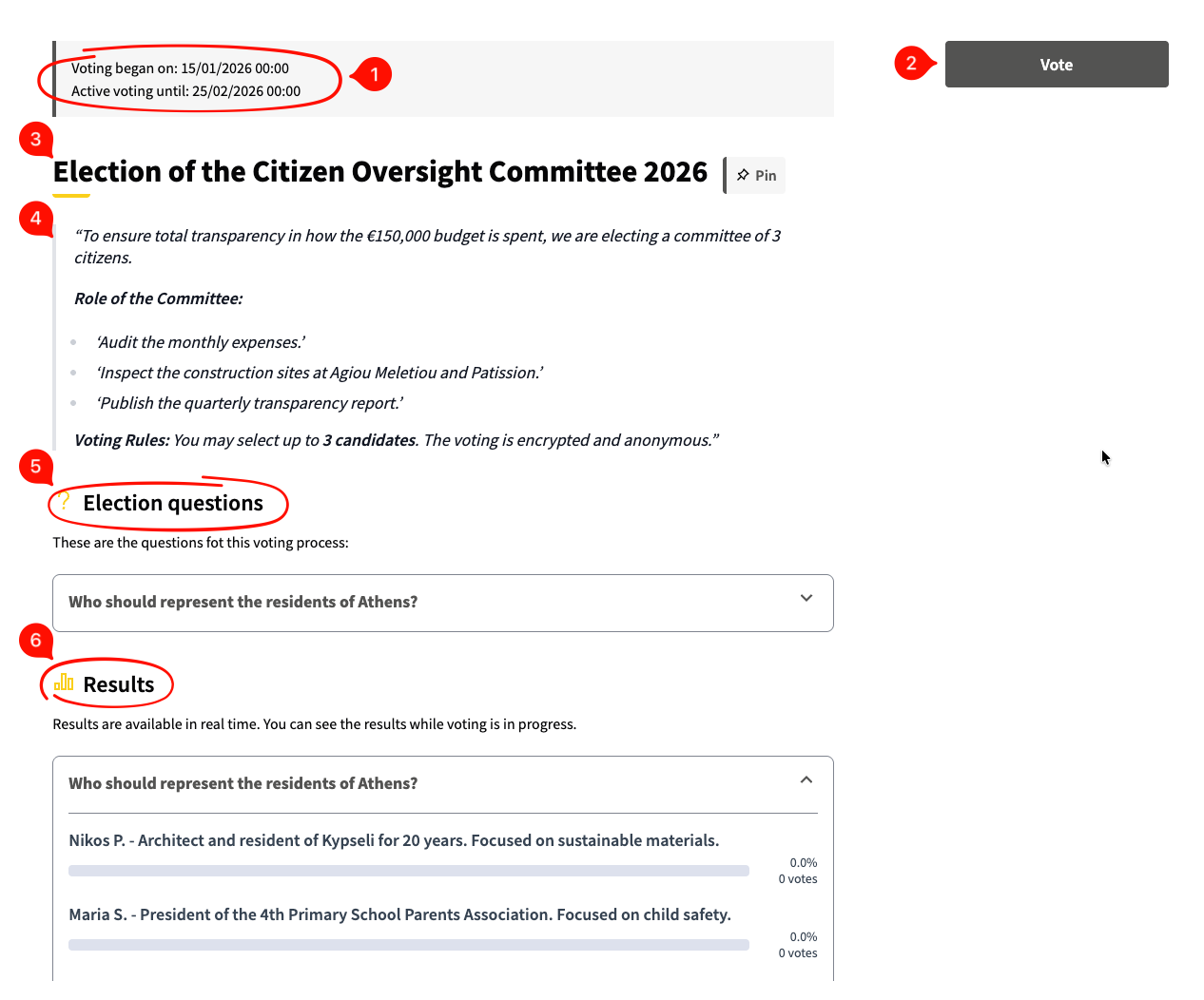
Dates: Shows when voting began and when it will end.
Vote button: Move to the voting page for this election (see below).
Title: Title of this election.
Body text: A description of what this election is about.
Election questions: One or more questions to be answered/voted for by the participants. If you expand this box, it shows you the choices.
Results: When results are available in real time, this section with its progress bars will be upgraded once votes are in.
Voting Screens
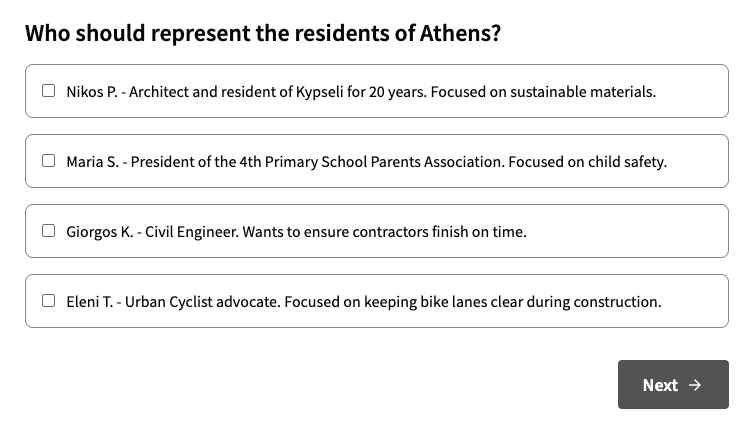
This is the first screen that appears when you press the vote button. Select your responses in the checkbox(es) and then click Next.
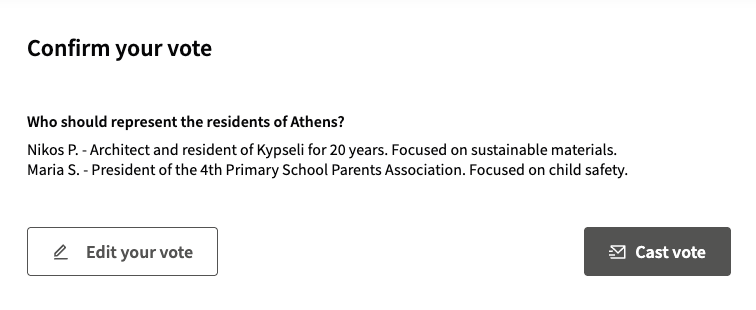
This is the screen where you can either edit your vote (button on the left) or Cast/confirm it (button on the right). Press "Cast vote" when done.
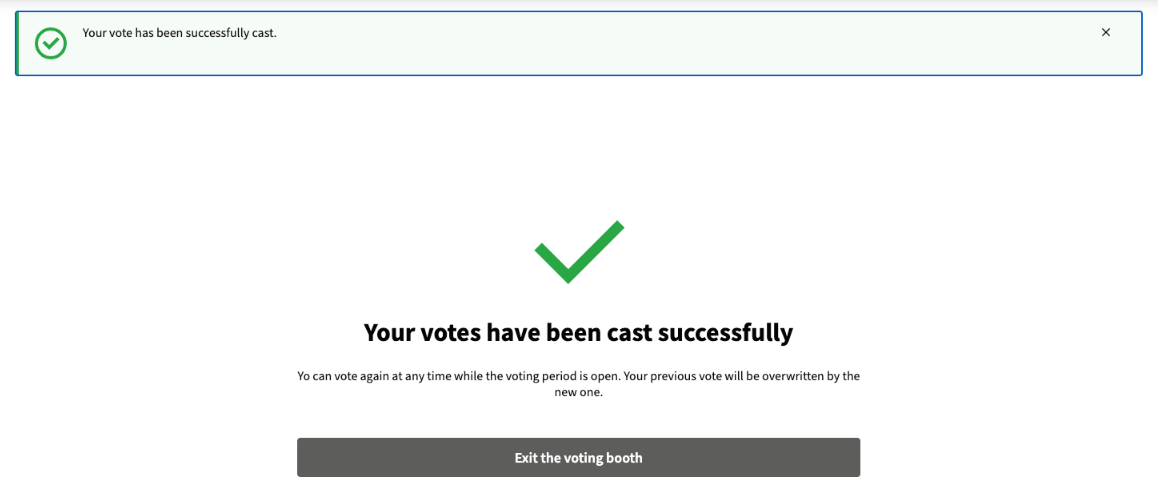
This is the screen that shows up when your vote has been successfully cast. If you click "Exit the voting booth" it will take you back to the election's individual page.
You can vote again, your last vote will be the one that is counted.