

Navigation / User Interface
Learn about what the main navigation sections and buttons do.
Comments Navigation
In whichever page you can comment, you will generally see a section like this at the bottom:
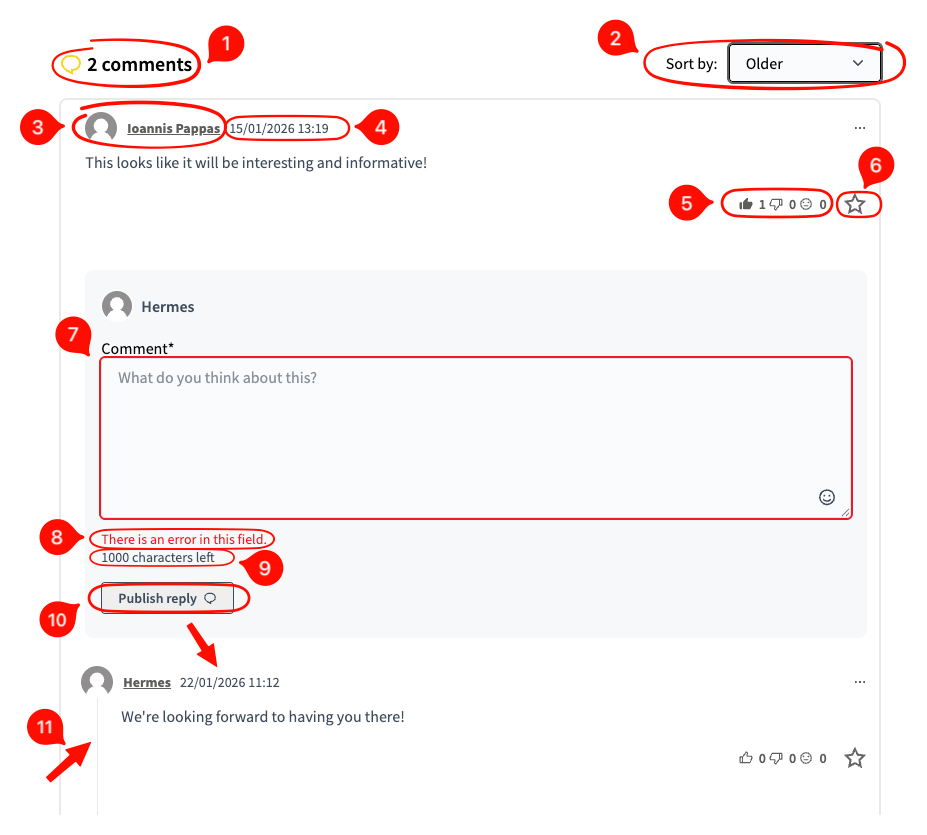
Number of comments: Shows you the number of comments left on this item.
Sort By: Select the dropdown to sort comments by Older, Best Rated, Recent and Most Discussed.
Author: Shows who wrote this particular comment.
Datetime: Shows the datetime when the comment was published.
Likes/dislikes/neutral: React to this comment by liking it (thumb up), disliking it (thumb down) or being neutral about it (neutral smile it). The counters for each increase as they are clicked by users.
Favorite button: Add to or remove from your favorites.
Main comment text input: Here you will write your comment. If it is empty or there is another input error (e.g. too many characters) the frame will be red.
Error message: Alerts you to there being an error in your input.
Characters left: Shows you how many characters there are left for you to write in your comment.
Publish reply button: Reply to the comment immediately above you (see bottom section for un-nested comment). Your reply will appear below.
Indentation line: Shows this comment is a reply to something else. The more nested the comments become, the more lines appear one at the right of another.
Individual / Top Level comment box (bottom of page):
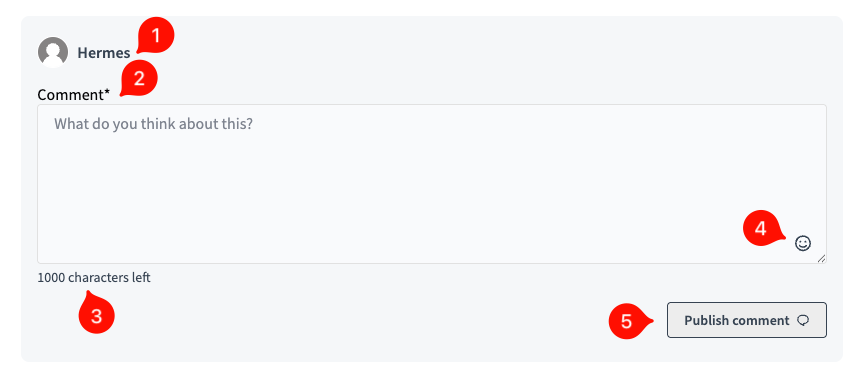
Username: Shows your username.
Comment box: Write your comment in here. The * means some characters are required for you to publish your comment.
Characters left count: Shows you how many characters there are left for you to write in your comment.
Emoji button: Click on this button to add emoji to your text.
Publish comment button: Press this button to publish your comment as a top-level comment (i.e. not a reply to another comment).