

Navigation / User Interface
Learn about what the main navigation sections and buttons do.
Budgets Navigation
When you click on a participatory space's Budgets sub-component, you will be greeted by this screen:

Budget number: Allows you at a glance to see how many budgets have been created.
Individual budget title and link: By clicking on this link you can go to the individual page of this budget.
Projects number: Allows you to see quickly how many projects are presented as votable options within this budget.
Sort selections: Sort the budgets randomly, by highest cost or by lowest cost.
Budget amount: See the complete / maximum amount for this budget.
Vote button: Click on this to go to the individual budget's page and vote on projects to be included.
Individual Budget Page
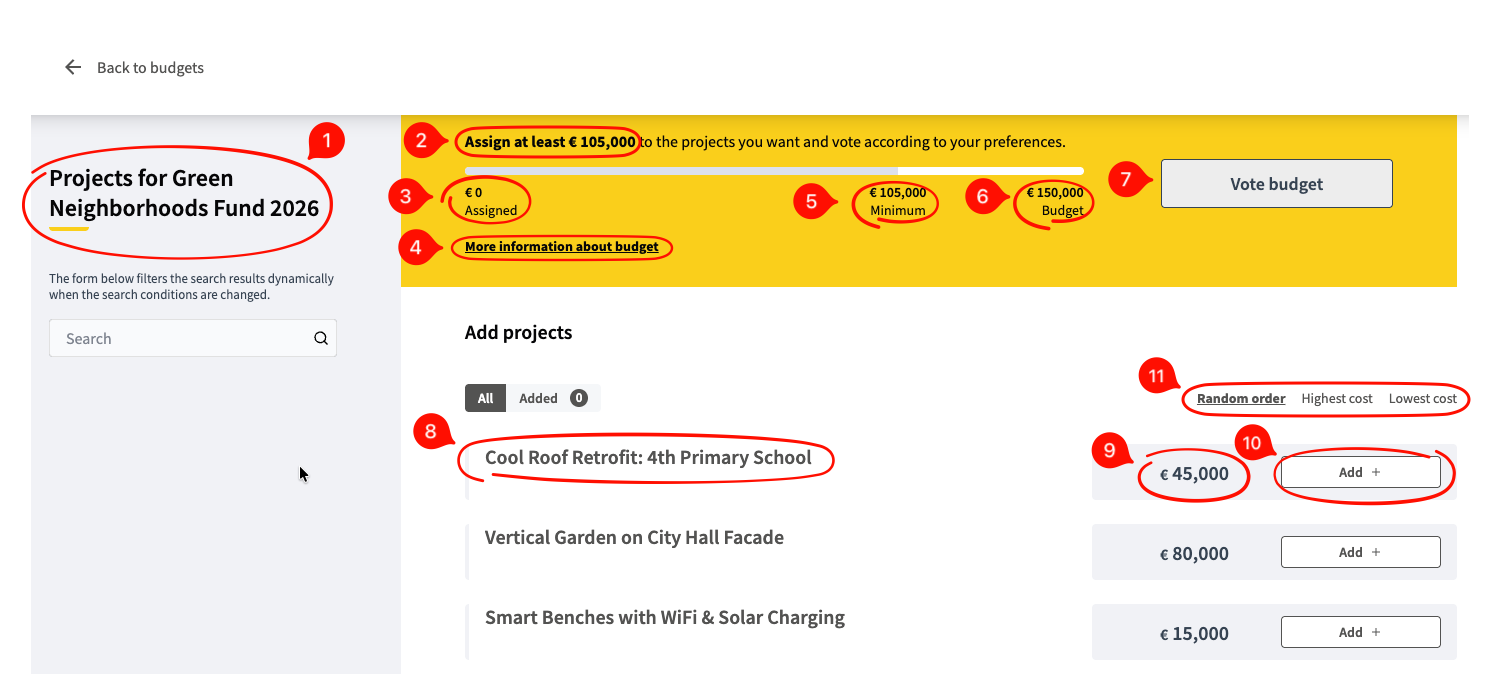
Title: Shows which budget the projects belong to.
Assignment minimum: Shows you the minimum amount that needs to be assigned by selecting one or multiple projects.
Assigned number: Shows you the current amount being assigned by you.
More information link: Shows you a link about what budgets are.
Assignment minimum: Same as #2.
Total budget: The maximum allocatable budget.
Vote budget button: After you have clicked on some Add buttons (see #10) and the minimum has been reached, this becomes clickable and you can vote for what you chose.
Individual project title / link: Shows the title of the project and links to its individual project page (see below).
Project amount: Shows the amount required by the project. This needs to add up between projects to at least the minimum number and underneath the maximum number.
Add button: This adds the project to the total amount, which is tracked above in the progress bar.
When you select some projects to be added by clicking on the Add buttons, this is what the screen will look like:

Individual Project Screen
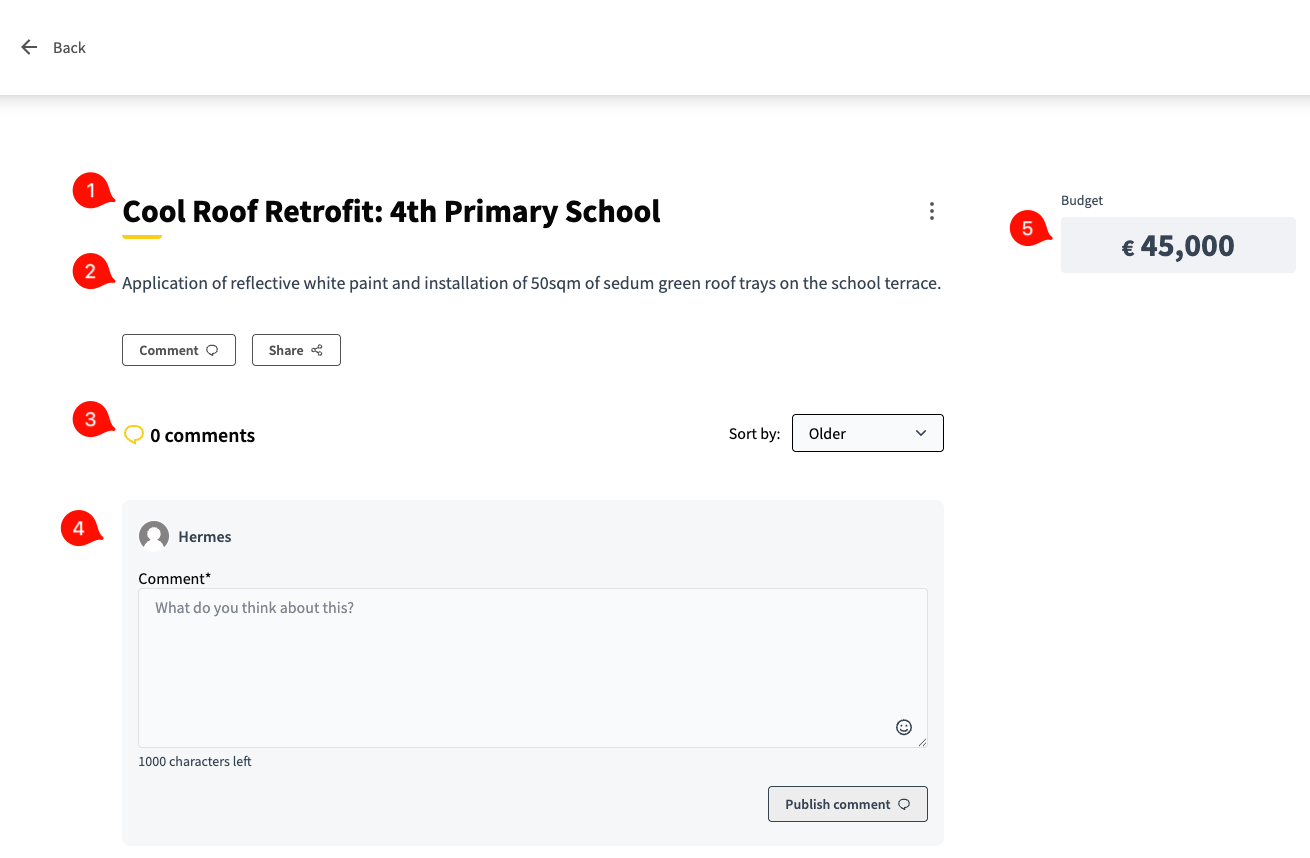
Project title: The title of the particular project.
Project description: A description of what this project will achieve.
Comments count: Shows you how many comments there are on this project.
Comment box: Gives you the ability to comment (see the Comment Navigation page for more).
Budget: Shows the budget for this particular project.