

Navigation / User Interface
Learn about what the main navigation sections and buttons do.
Meetings Navigation
When you navigate to the Meetings sub-component menu from your participatory space, you will be greeted by this screen:
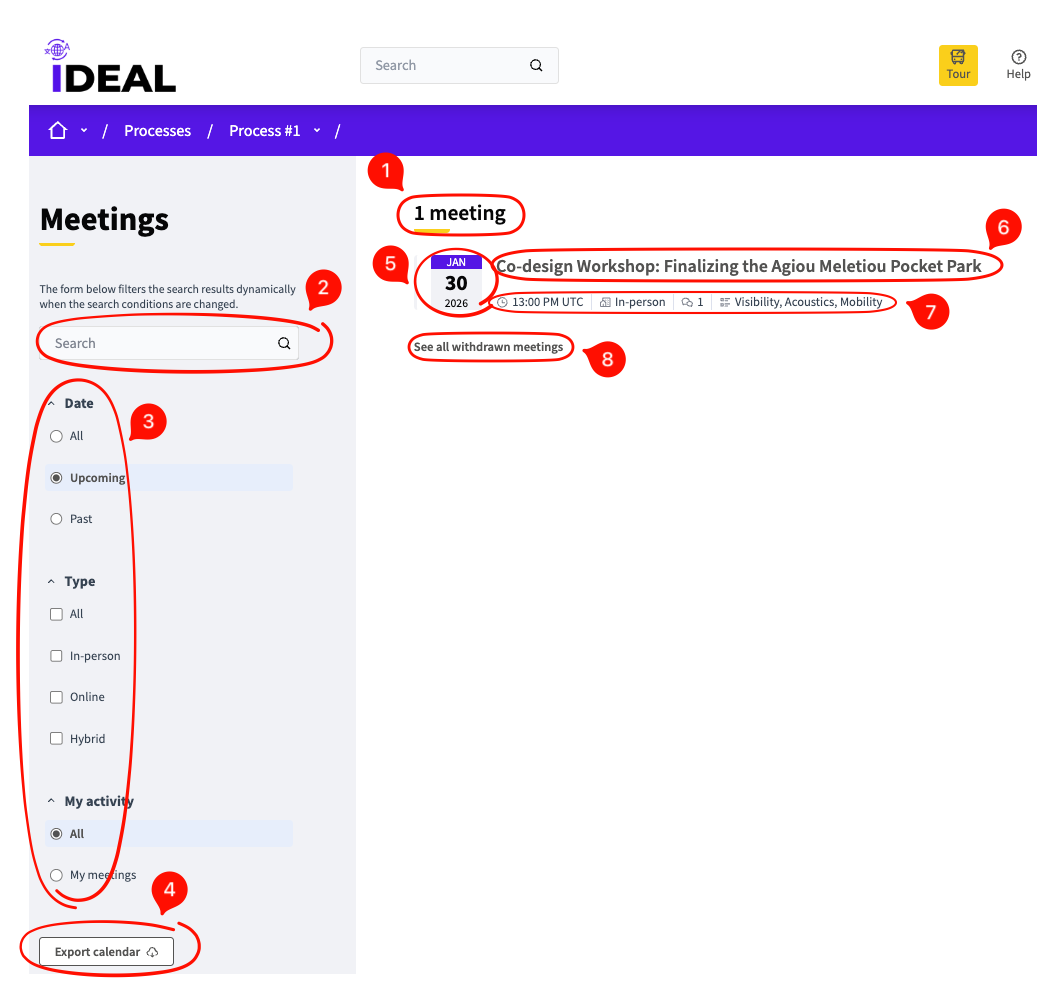
Number of meetings: Shows you how many published meetings exist in this participatory space.
Search bar: Search for something particular you want to find amongst the available meetings.
Filters: Use the selections to narrow down your search for a meeting you want to find.
Export calendar button: Opens up a screen where you can copy a calendar URL to add all published meetings in your calendar.
Meeting date: When the meeting starts.
Meeting title / link: Click on this to be taken to the individual meeting page (see below).
Meeting details: Here you can see what time the meeting begins, whether it's in person, online or a hybrid, how many comments there are in its page and what accessibility features it provides.
See all withdrawn meetings link: Shows you all meetings that have been withdrawn in case some of that information is relevant to you.
Individual Meeting Page

Meeting title: The title for this meeting.
Favorite button: Add this meeting to or remove from your favorites.
Register button: Register for this meeting.
Meeting date: The date when the meeting starts.
Meeting location and address: The bold letters show the location and the letters beneath them show the address.
Meeting times: What time the meeting starts and ends.
Accessibility features: See what accessibility features this meeting provides.
Meeting author: See whether this meeting is official or from another user.
Meeting description: Details about the nature and subject of the meeting.
Comment button: Make a comment. See comments below (and see the Comments Navigation page for more details).
Share button: Allows you to share the meeting link by copying it or sharing on social media or certain messengers.