
Navigation / User Interface
Learn about what the main navigation sections and buttons do.
Main Page Navigation
The home / main page is your main window into the different sections of the platform.
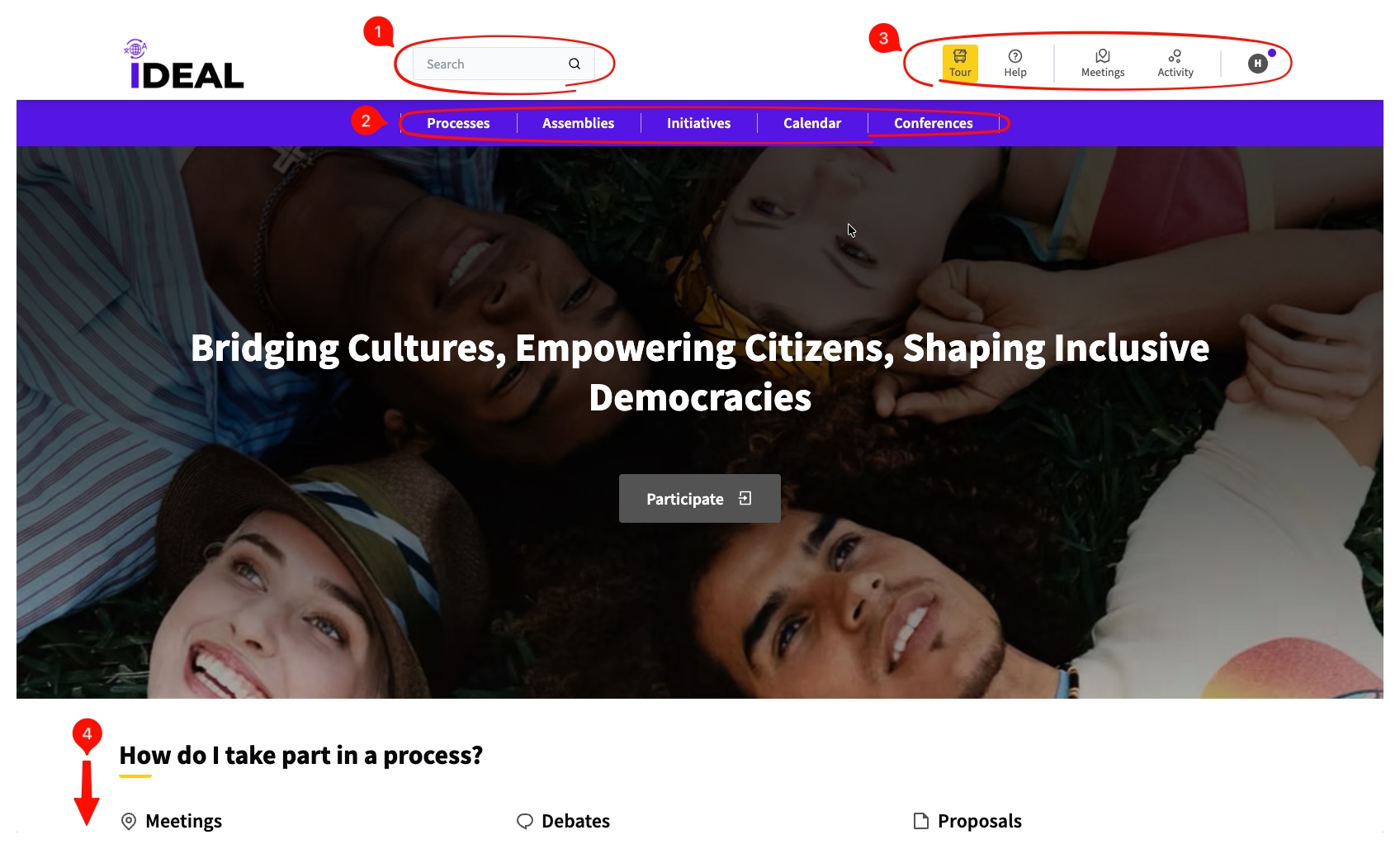
Search: Here you can search the platform for whatever you're looking for.
Access to Participatory Spaces / Calendar: From here you can access any Processes, Assemblies, Initiatives and Conferences that exist, as well as a calendar view of the different participatory processes and events (such as meetings).
-
Top main right navigation:
-
Tour: When you press the Tour button, you can have an interactive guide of the main elements of the page.

Help: Leads you to the main menu of the help guides you're reading right now.
-
Meetings: Shows you a main page with all meetings, regardless of what participatory process / element they are from.

-
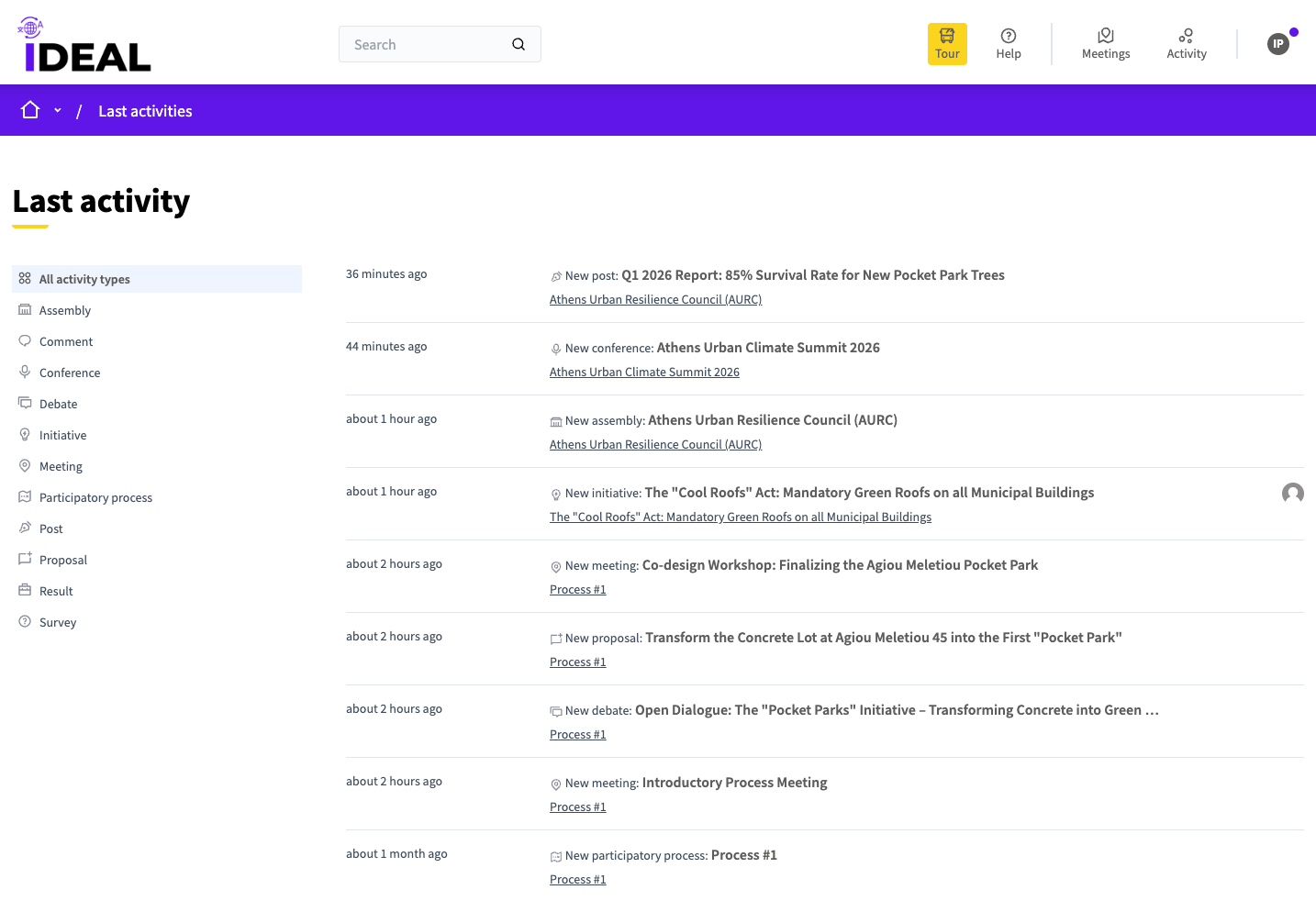
Activity: This shows you all the latest activity on the platform. You can use the menu on the left to see more specific activity.
-
User Icon / Menu: Upon clicking on this you can access the user menu which will lead you towards navigation centered around your account. See more about this in the User Navigation section.

-
-
-
Navigation beyond the top of the main page:
"How do I take part in a process?" / "More info about IDEAL" : Also takes you to these help pages you are reading right now.
-
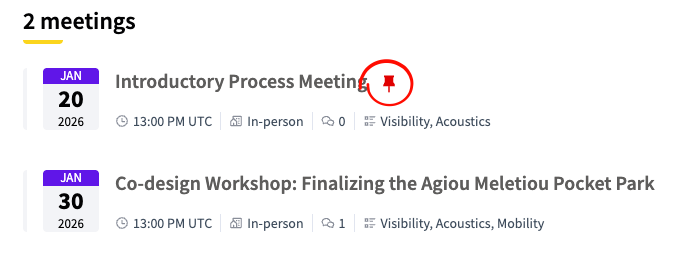
"Pinned" Section: Admins can pin certain types of content to make them more visible to users without them having to search for them. In certain lists you will see a red pin icon next to them.
-
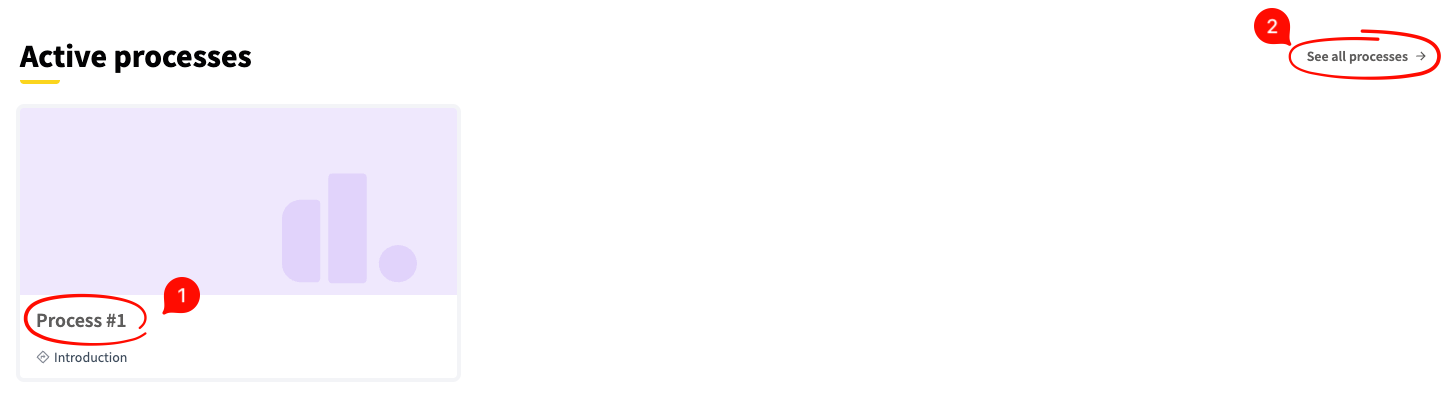
Active Processes ( + assemblies, initiatives and conferences): These sections highlight the active types of participatory processes on the platform. Click on the title to go to a specific one (1) or click the link on the right (2) to see them all.
-
Meetings: A different view of upcoming meetings including a small calendar.

-
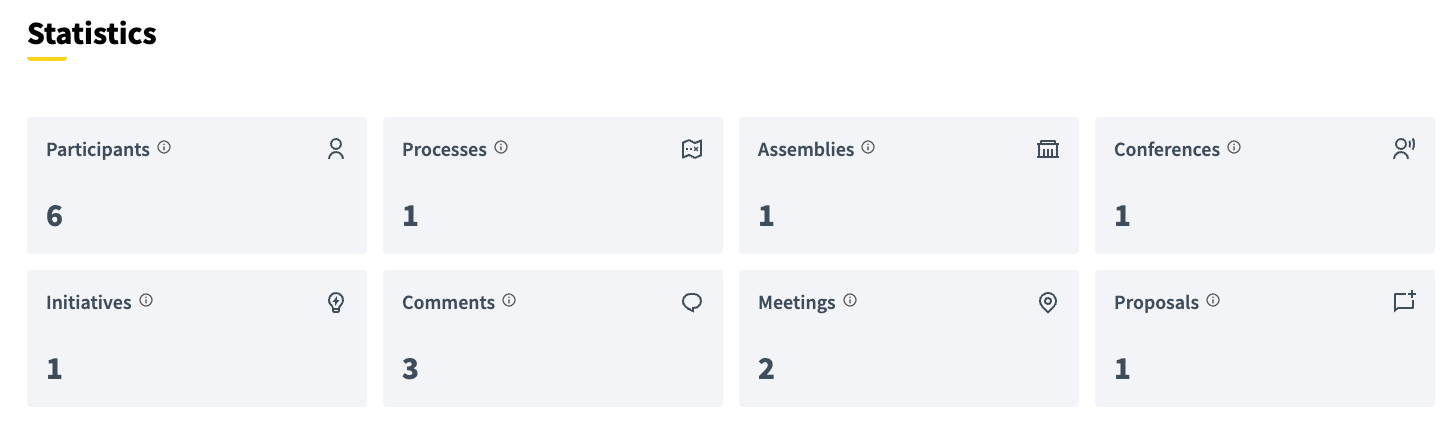
Statistics: A brief overview of what exists on the platform in numbers.