

Navigation / User Interface
Learn about what the main navigation sections and buttons do.
Debates Navigation
When you navigate to the Debates sub-component from the menu of your participatory space, you will be greeted by this screen:

New debate button: Click this to create a new debate of your own.
Debate number: Shows you the total number of debates created for this participatory space
Debate title/link: Click on this to go to the individual debate page. Find the beginning of the debate main body text underneath.
Debate status: Shows you the current status of the debate.
Comments/likes: Shows you how many comments this debate has (comment icon) and how many times it has been liked (heart icon).
Sorting: Sort debates randomly, by most recent, most commented or recently updated.
Individual Debate Page (top)
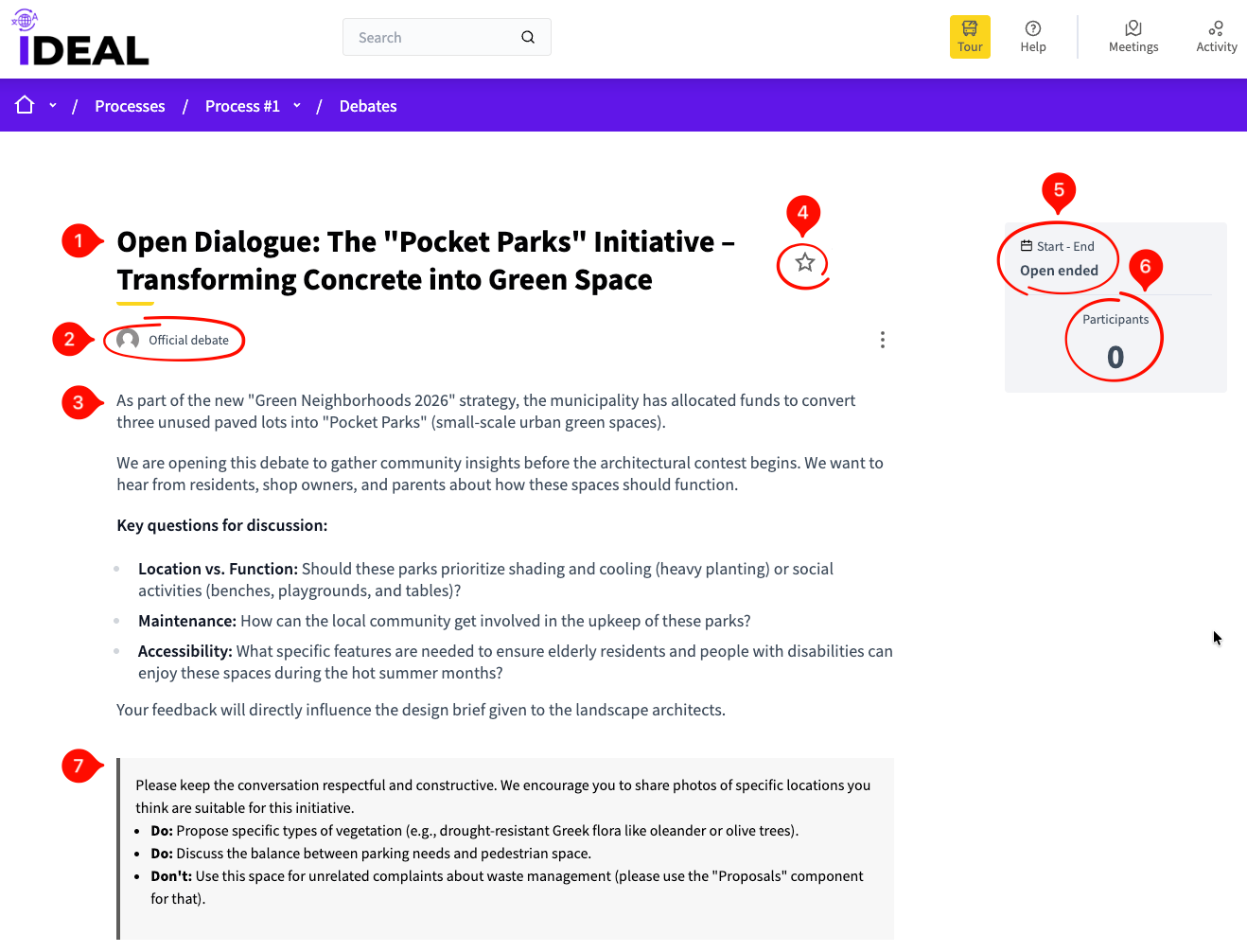
Debate title: The title of the debate you are seeing.
Debate designation: Whether this debate is official or made by a user such as you.
Debate main body: The description / explanation of the debate.
Favorite icon: Click this to favorite (to save in your favorites) or unfavorite this debate (check the User Navigation page for more details).
Debate start and end: See if this is an open ended debate or whether it has a beginning and end date.
Participants: See how many people are participating in this debate.
Instructions: Instructions as to how to conduct yourself in this debate.
Individual Debate page (bottom)
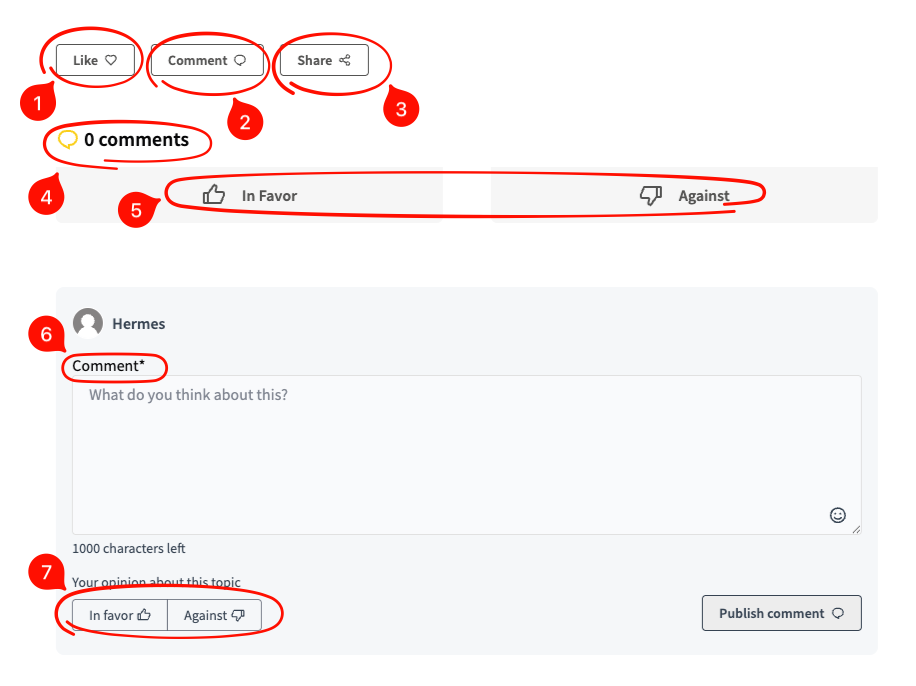
Like Button: Use this button to like the debate.
Comment button: Use this button to comment on the debate (see the Comment Navigation page for more info).
Share button: Use this to share to social media, messengers, create a QR code or just copy the link to this debate.
Comments number: Shows you how many comments this debate currently has.
In favor / Against buttons: Show whether you are for or against the subject of this debate.
Comment box: Use this to comment on the debate (use Publish comment on the bottom to publish, see the Comment Navigation page for more info).
In favor / against buttons: see #5.